Contact
- Key Features
- Screenshot
- User Guide
- Articles
Tune4Mac M4P Converter will automatically do the followed procedures for you to remove DRM protection from your music files or audio files:
1. Burn a Virtual audio CD with the protected audio tracks
2. Rip that new Virtual audio CD to MP3's.
It allows user to burn music to a Virtual CD-RW disc on iTunes, and then automatically rip/encode the music files stored on the Virtual CD-R. This makes the whole conversion process automatically, faster, and with CD quality.
Main Interface of Tune4mac M4P Converter
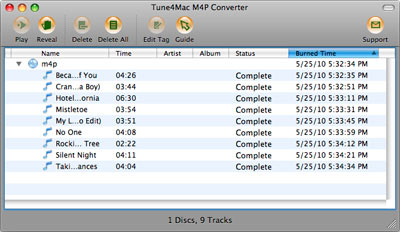
Stop prompting "Blank CD inserted" while running Tune4Mac M4P Converte
To stop prompting "Blank CD inserted" while running Tune4Mac, you need to do the following steps:
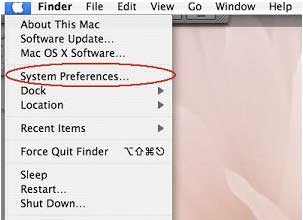
1. Click the Apple icon on the left-top corner of your screen, a menu as below will popup. Select the menu item "System Preferences...".
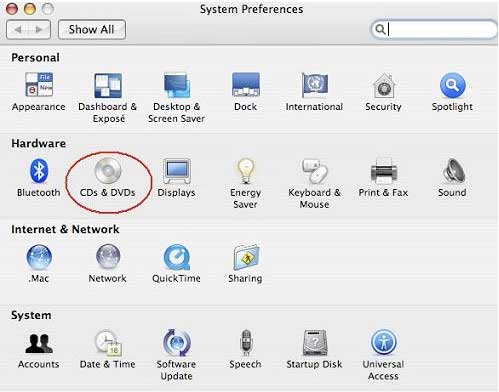
2. After selected the menu item "System Preferences...", the "System Preferences" window will appear. Please click the "CDs & DVDs" icon.
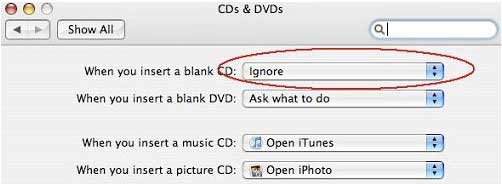
3. Click the "CDs & DVDs" icon, the "CDs & DVDs" preference windows will appear. Please change the "When you insert a blank CD" selection as the value "Ignore".